
- Access Tools sub menu and open 'Data Loading' tab
- Select the data source, for which data loading notifications are required, and press the 'Loading Options' button
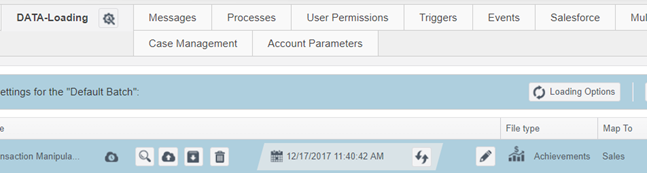
- Check the 'Distribution Mail Process' check box, in the 'Loading Option for the Default Batch' screen

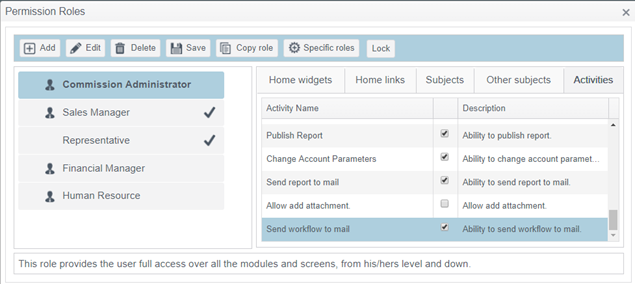
- Access Tool sub menu, users' permissions definition, select the required role and access the 'Activities' tab
- Check 'Ability to send Workflow to mail', which is the last displayed ability
- Access Tools sub menu, open Process tab folder and 'WorkFlows' tab inside
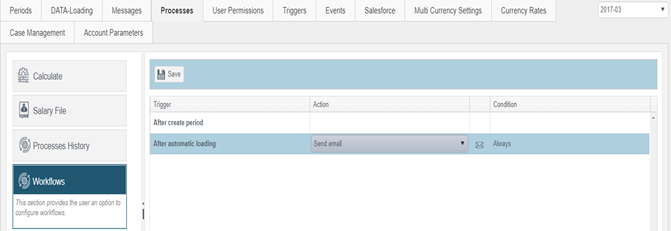
- Select 'After Automatic Loading' row.
- In the 'Action' column select the 'Send email' activity.
- Press the 'envelope' icon to define the notification distribution

- In the 'Condition' column, open the drop down list and select when notifications should be sent
Comments